Preview Before You Download: Judging Sound on MP3Juices
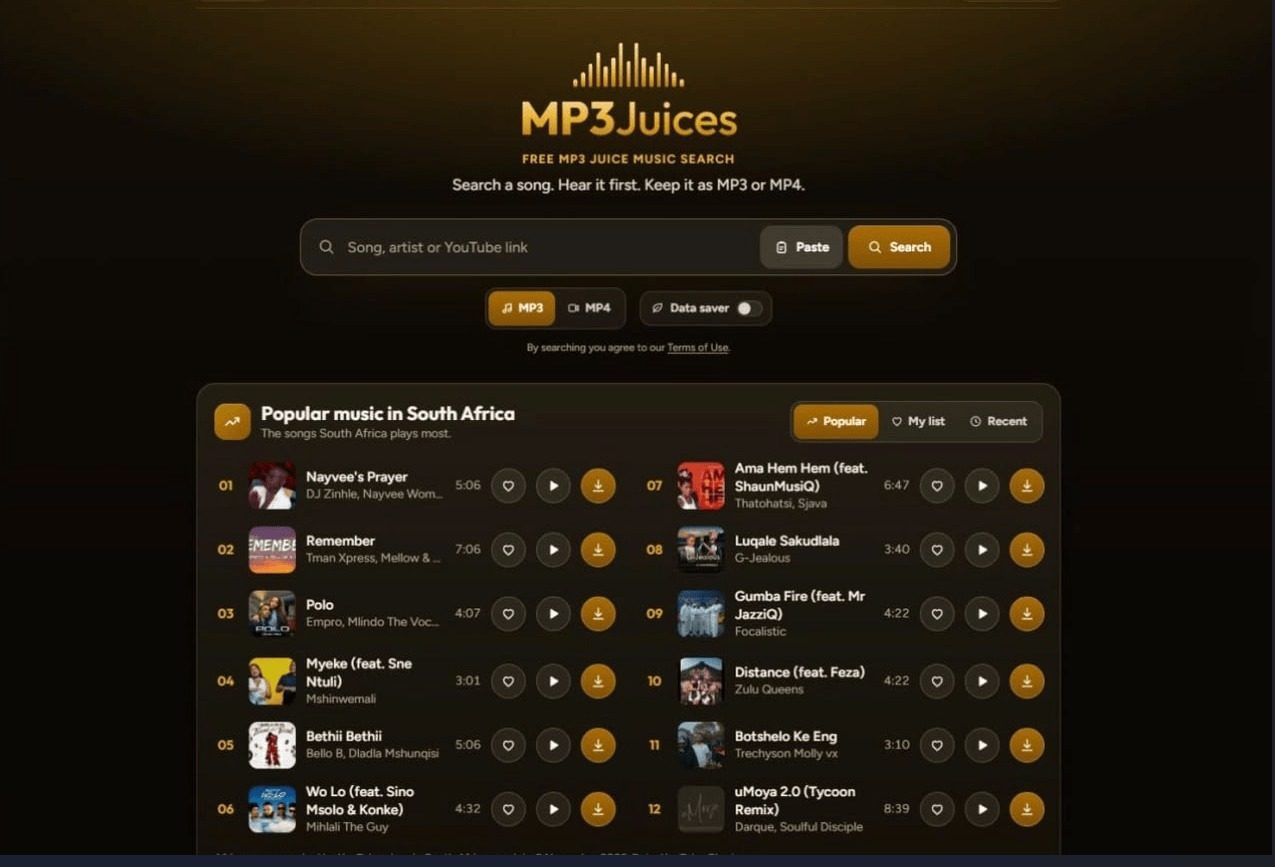
You pull up a familiar song, and within the first few seconds something feels off. The vocal sits further back than you remember, the bass is louder, and the whole track feels compressed. It turns out two versions of the same song can sound noticeably different, and you only catch it by listening. That is exactly why previewing matters before you commit a file to your library. mp3juices.art is built around that idea: search for a track, listen to it first, and only then decide whether to download it as an MP3 or MP4.
This deep dive looks at the platform from an audio-first angle. Instead of treating it as a simple search-and-grab tool, we will examine how preview listening helps you compare versions, judge loudness and mix differences, and pick the right file format for how you actually listen.
What MP3Juices Actually Offers Listeners
MP3Juices is a free web-based music search and download platform. You do not need an account, and there is nothing to install. You type in a song, artist, or keyword, and the site returns results you can play before downloading. The interface includes genre and artist browsing, charts, a personal list feature, and a data saver mode.
The important detail for careful listeners is the order of operations. The site is designed so that listening comes before downloading. That single design choice changes how you use it. You are not guessing from a title and a thumbnail; you are hearing the actual audio stream and then making a decision.
Because the platform is browser-based, it works across laptops, phones, and tablets. That matters if you preview on one device and download on another, or if you like to check a track on headphones before saving it for a speaker system.
Why Preview Listening Changes Your Download Decisions
Most download mistakes are not about the song choice. They are about the version. A track can exist as an album cut, a single edit, a radio version, a remaster, a live take, or a remix, and those files can differ in length, dynamics, and tonal balance. Previewing lets you hear which one you are actually getting.
There is also the loudness problem. Modern masters are often pushed louder than older releases, and a louder file can trick your ears into thinking it sounds better at first. A short preview gives you a chance to notice whether the track feels fatiguing, whether the highs are harsh, or whether the low end is bloated before you add it to a playlist.
Previewing is the cheapest quality check you can make. It costs a few seconds and prevents you from accumulating files you will later delete. On a platform like MP3Juices, where search results can include multiple entries for the same title, that check is not optional if you care about sound.
Comparing Versions, Mixes and Loudness During Preview
Start with a consistent listening level
Set your volume once and leave it alone while you compare. If you adjust the volume between previews, you lose the ability to judge loudness differences fairly. Use the same output device for the whole session, whether that is headphones, earbuds, or speakers.
Listen to the same short passage
Pick a specific moment, such as the first chorus or a bridge, and replay it across candidates. Comparing the same 15 to 20 seconds of two versions tells you more than listening to two full tracks in different moods. Pay attention to vocal placement, stereo width, and how much space the instruments have.
Notice the tells of a different master
A remaster often has a brighter top end and a tighter low end. A radio edit may cut abruptly or shorten an intro. A live version will carry room ambience and audience noise. These differences are audible in preview and are your best guide to which file matches what you want.
Use the personal list to hold candidates
When several results look promising, save them to the personal list feature and compare them one after another. This keeps your shortlist organized so you are not re-searching the same title repeatedly.
Choosing Between MP3 and MP4 After You Listen
Format choice should follow the listening experience, not precede it. Once you have previewed a track and decided it is the right version, the next question is what you want to do with it.
- MP3 is the practical choice for audio-only listening: playlists, phone storage, car systems, and general portability.
- MP4 makes sense when the visual component matters, such as a music video or a performance clip you want to keep.
There is a trade-off in size and convenience. Audio files are lighter and easier to organize, while video files take more space but preserve the visual context. If you only need the song, an audio download keeps your library cleaner. If the preview showed you a video you want to revisit, the MP4 route is the better fit.
Data saver mode is worth knowing about here. If you are previewing on a limited connection, it can help you get through more candidates before you commit to a download.
Building a Better Listening Workflow on the Platform
A repeatable workflow beats random clicking. The following sequence keeps your decisions deliberate and your library tidy.
- Search by song title, artist, or a broader keyword, and use genre or artist browsing when you want to explore rather than target a specific track.
- Preview each promising result at a fixed volume and compare the same passage across candidates.
- Shortlist the best-sounding versions using the personal list feature.
- Decide on MP3 or MP4 based on how you will use the file.
- Download only the versions that passed the preview check.
Charts are useful when you want to hear what is current, but they are not a quality ranking. A chart position tells you about popularity, not about which master sounds better. Treat charts as a discovery tool and let your ears make the final call.
It also helps to preview in the environment where you will actually listen. If most of your listening happens on commuter earbuds, judge the track there. A mix that sounds thin on studio headphones may sit perfectly on the gear you use every day.
Common Preview Mistakes and How to Avoid Them
Comparing at different volumes is the most common error. It makes louder files seem better and quieter files seem dull. Fix your level before you start.
Another mistake is skipping the preview entirely because a title looks right. Titles can be duplicated, mislabeled, or refer to a different edit. A ten-second listen resolves most of that ambiguity.
Listeners also tend to judge only the intro. Intros are often quiet or sparse, so a track can seem dull until the full arrangement arrives. Preview a section where the full mix is present.
Finally, avoid downloading several versions of the same song in one session without comparing them first. That is how libraries fill with duplicates. Preview, shortlist, then download the winner.
Frequently Asked Questions
Do I need an account to preview and download music?
No. The platform is designed for use without registration or installation. You can search, listen, and download from the browser.
Can I listen to a song before deciding to download it?
Yes. Preview listening is a core part of how the site works, and it is the main reason to use it rather than downloading blind.
What is the difference between the MP3 and MP4 options?
MP3 is audio only and is lighter for playlists and portable listening. MP4 includes video and is better when the visual element matters to you.
What does data saver mode do?
It is intended to reduce data usage while you browse and preview, which helps on limited or mobile connections.
How can I keep track of tracks I want to compare?
Use the personal list feature to save candidates, then preview them back to back at a fixed volume before choosing one to download.
Previewing is a small habit with a large payoff. It turns a download from a guess into a decision based on what you actually heard, and it keeps your music library filled with the versions you meant to keep.